> ## Documentation Index
> Fetch the complete documentation index at: https://centrixnodes-mintlify-039aa6e3.mintlify.site/llms.txt
> Use this file to discover all available pages before exploring further.
# Install MariaDB on a Windows Server VPS
> Install and configure MariaDB on a Windows VPS or dedicated server: run the MSI installer, set a root password, and enable remote connections.
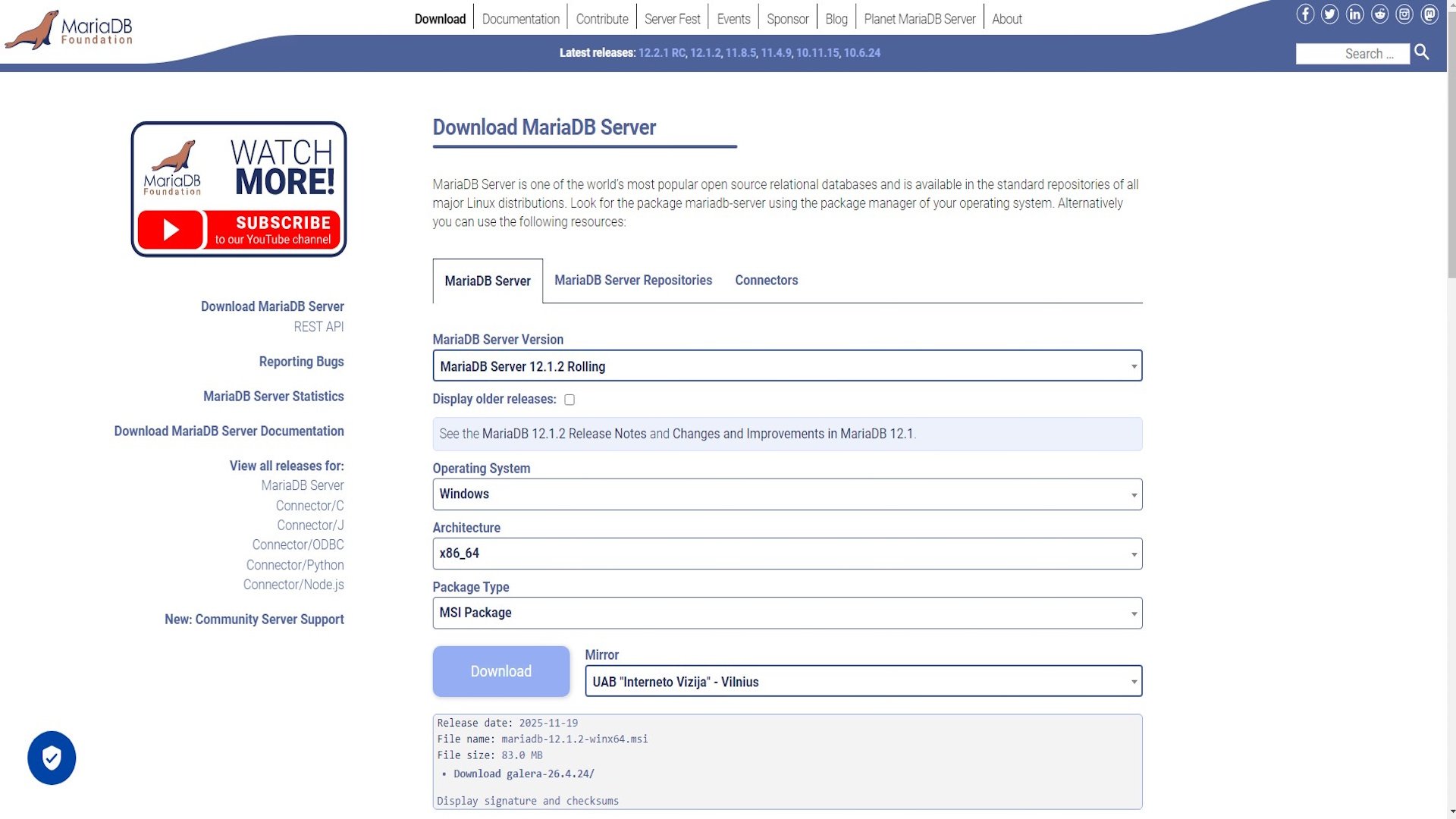
### Step 1: Install MariaDB from the official [Website](https://mariadb.org/download/)
 ### Step 2: Configure MariaDB
1. Click on the download installation file and run it.
### Step 2: Configure MariaDB
1. Click on the download installation file and run it.
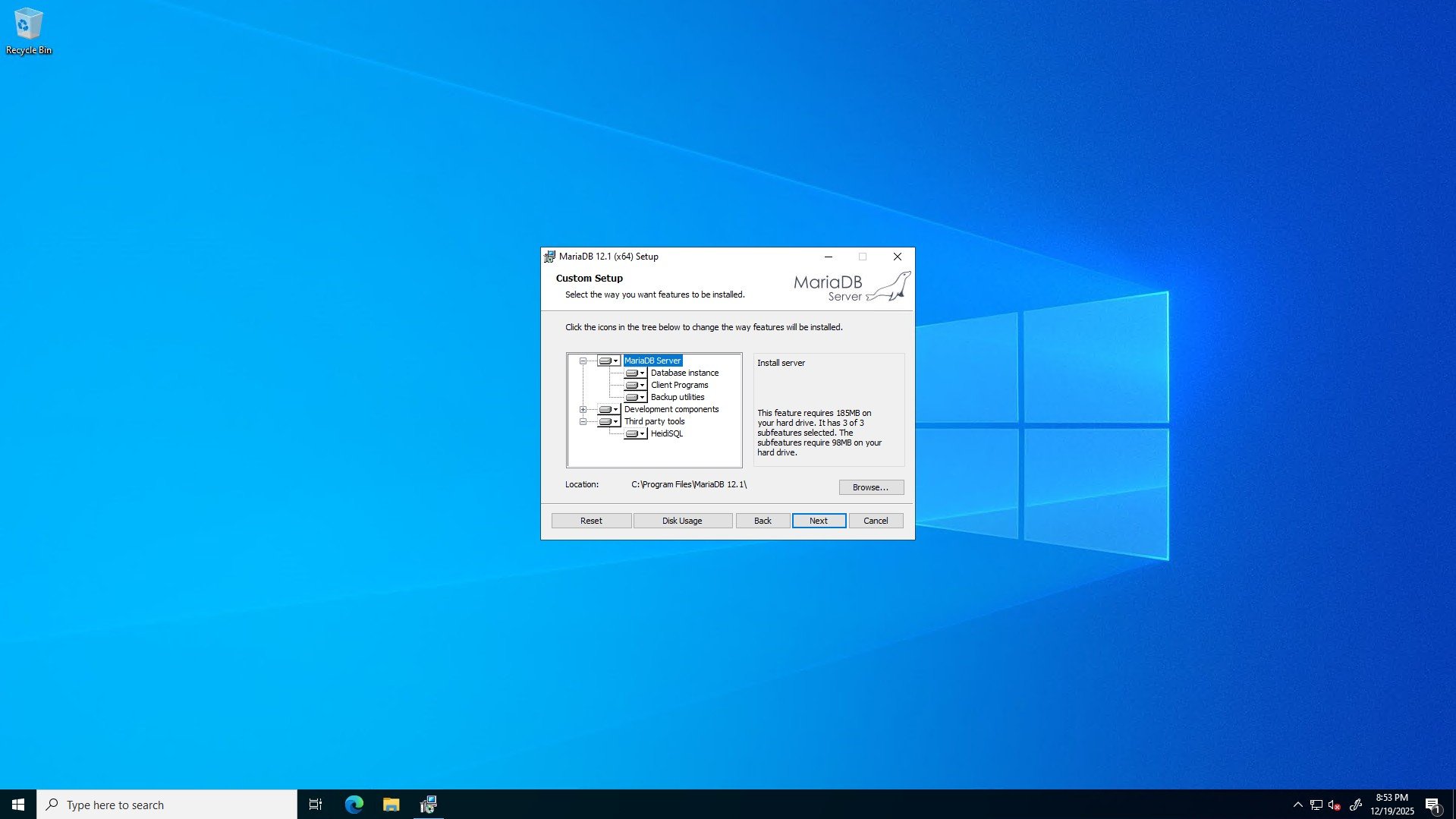
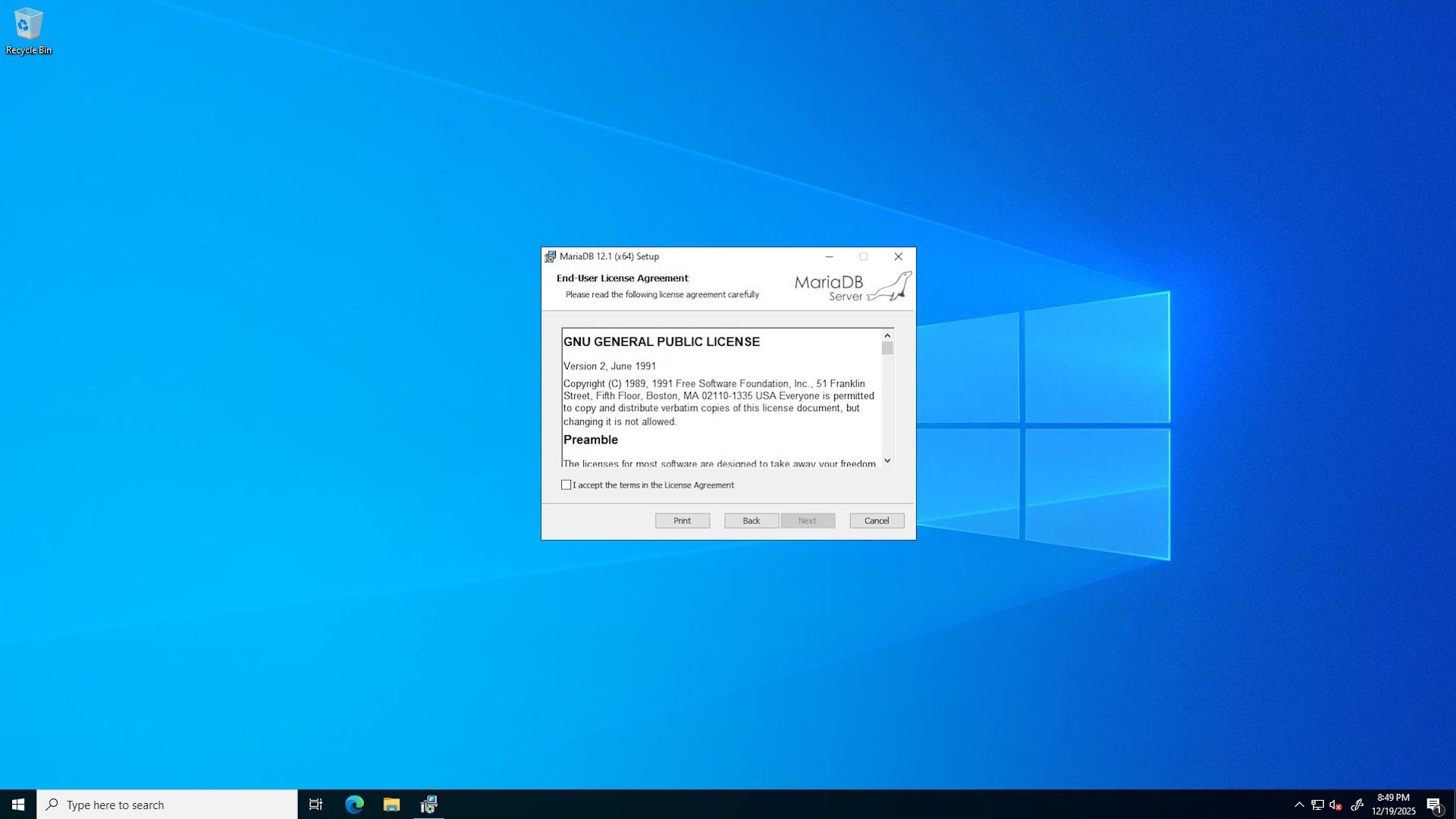 2. Follow the installation prompts and select the appropriate options for your server.
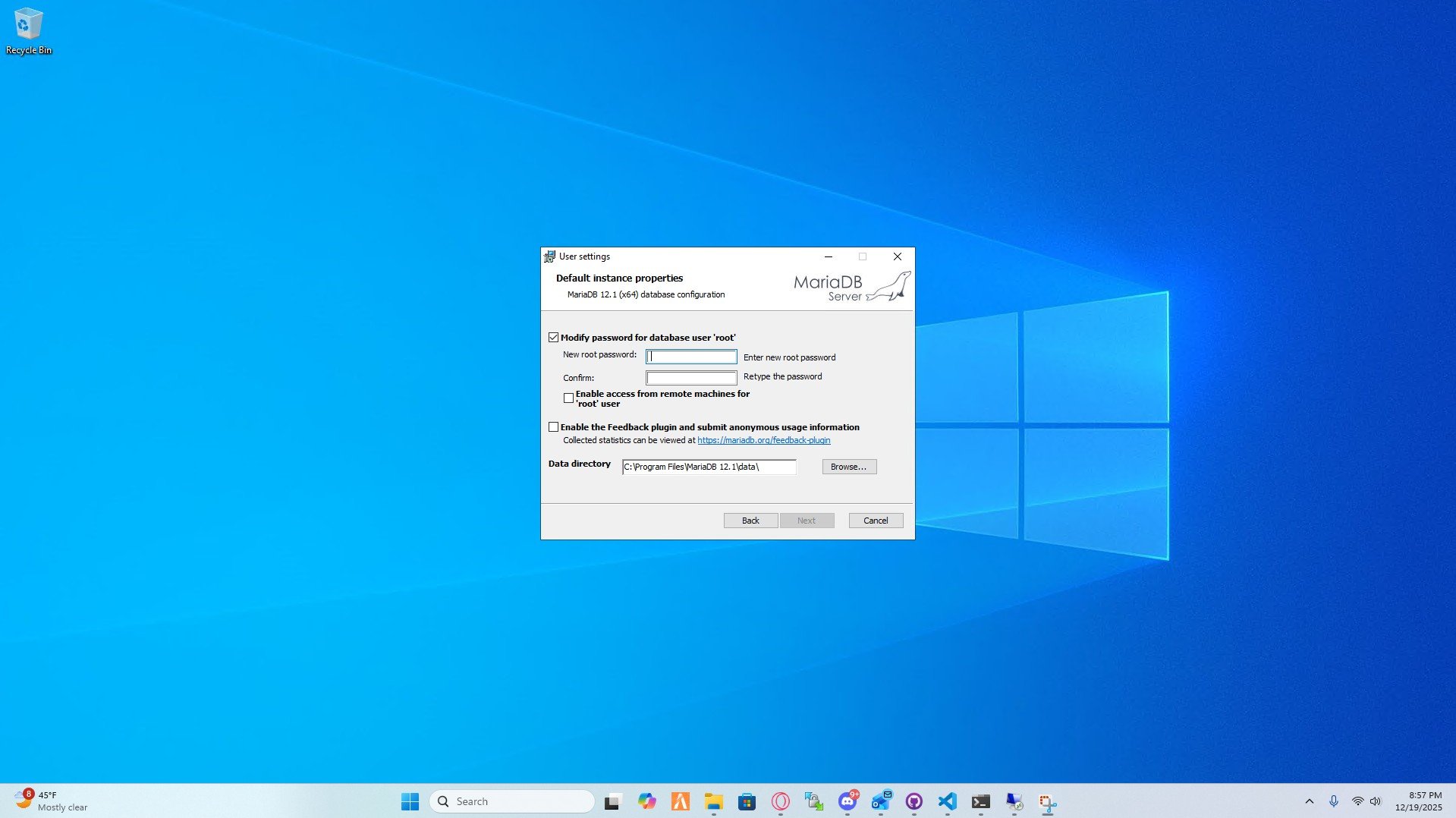
 3. During the configuration, you will be prompted to set up a root user and password. Make sure to remember this information as you will need it to access the database.
 4. After you're done with the configuration, click "Finish" to complete the installation.
**Congratulations!** You have successfully set up MariaDB on your Windows Server. You can now start using it to manage your databases.
4. After you're done with the configuration, click "Finish" to complete the installation.
**Congratulations!** You have successfully set up MariaDB on your Windows Server. You can now start using it to manage your databases.